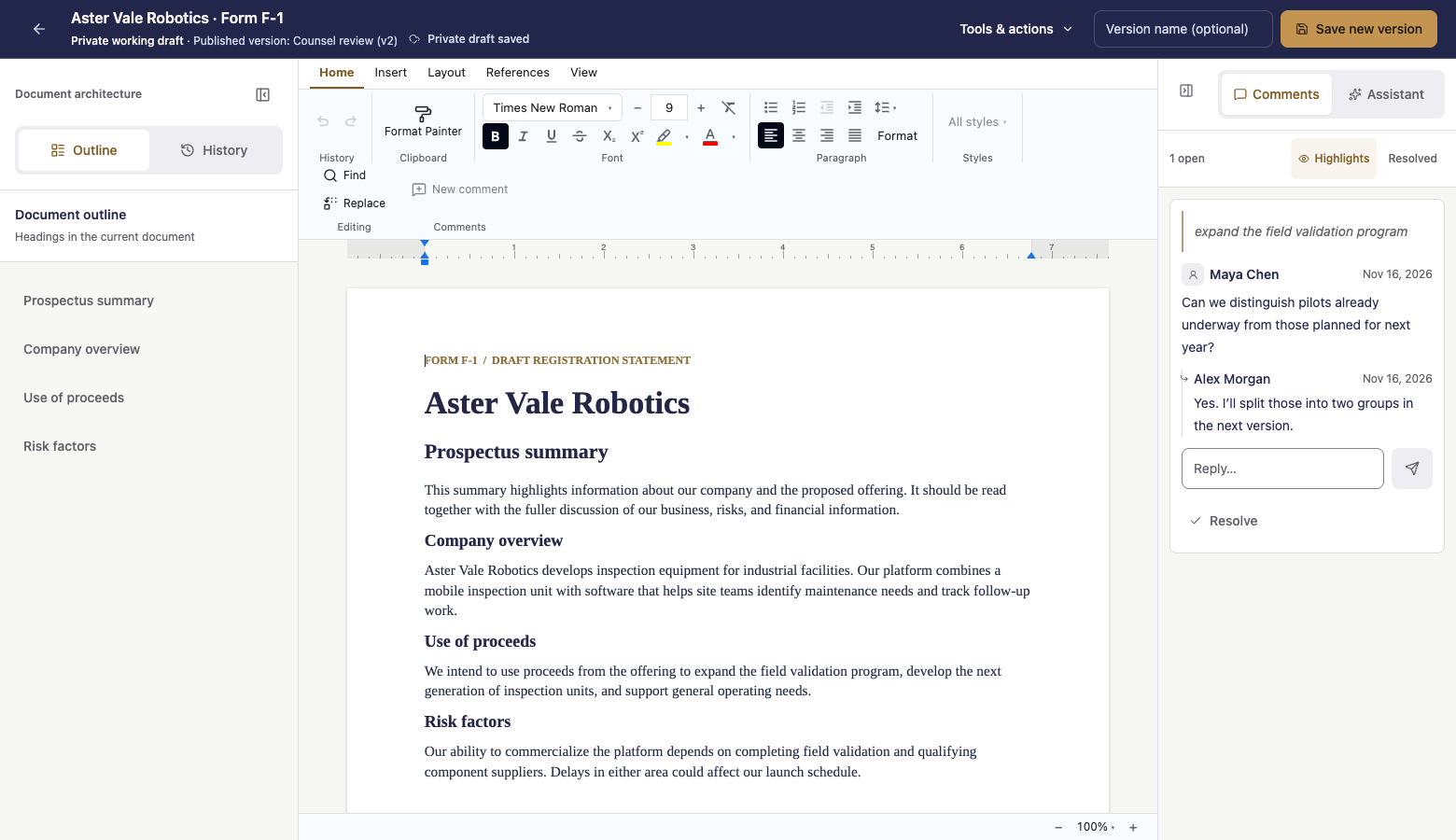
Each step keeps the people, documents and discussion connected, while preserving the boundaries between private work and published versions.
1 · Request
Start with the right context.
Choose an available request type and explain what is needed. Keep the instructions and supporting files connected to that request.
Client
Describe the need and review the Initialization Fee before payment.
Legal team
Review the intake, identify ownership and pick up the relevant work.
2 · Draft
A working copy has room to develop.
Edit and save privately, with outline, formatting and document tools close to the text. Publication is a separate choice.
Client
Provide supporting material and respond to the legal team’s questions.
Legal team
Develop a private working draft and review any AI suggestion before applying it.
3 · Review
Be clear about which version is being reviewed.
Published versions remain distinct from private working copies. Review comments, history and comparisons with the intended access.
Client
Review the published work and comment where your permissions allow.
Legal team
Publish a reviewable version, respond to comments and compare revisions.
4 · Communicate
Keep the discussion connected to the work.
Use request conversations for the work at hand, and live chat for consultations. AI sessions remain a separate workspace.
Client
Ask questions, share files and return to the selected conversation.
Legal team
Respond with the request context in view and retain the discussion history.
Clear boundaries
Access, versions and assistance you can understand.
Protected file sharing
Manage your files and share them with authorized users through access-controlled storage and protected previews.
Shared Files access is view-only. Request collaboration and owner-only Editable documents have separate permissions.
Versions and request history
Review published document versions and key request activity alongside related files and conversations.
Private saves do not automatically become official publications. Available actions follow access and workflow state.
AI with deliberate context
Chat can use history and attachments; document assistance can use the draft and selected text. Mini AI does not automatically attach the page. Review generated output; usage limits and availability apply.
Start a legal request with a one-time Initialization Fee. Fees for legal services are separate and agreed with your legal provider.
For client-created requests
Initialization Fee
Fee shown before payment
A one-time Initialization Fee applies when you create a client request. Review the amount during intake before completing payment through Stripe.
This fee is separate from legal-service fees. Lawyer-created requests follow a separate intake flow.
Separate legal services
Legal-service fees
Agreed with your provider
The independent law firm or legal professional providing your legal services sets the scope of work and the legal-service fees. The Initialization Fee does not cover those fees.
Contact us with questions about the service you need and how to get started.
Clients and legal teams use role-appropriate tools in one connected workspace. Client accounts can be created online; existing legal-team users sign in to their accounts.
How do I start a request?
Create and verify a client account, choose an available request type, provide the details and review the Initialization Fee before payment.
Are private drafts automatically shared?
Private working copies and published official versions are separate. Access and available actions depend on the request’s permissions and current state.
Can everyone edit a shared file?
Shared Files access is view-only. Request collaboration permissions and owner-only Editable documents are separate from file sharing.
What context can AI use?
AI chat can use conversation history and attached files. Document assistance can use the current draft and selected text. Mini AI does not automatically attach the current page. Review generated output; usage limits and availability apply.
Does the Initialization Fee cover legal services?
No. The one-time Initialization Fee for client-created requests is separate from legal-service scope and fees agreed with the independent legal provider.
Where do I get help?
Existing customers use authenticated Support tickets for account, billing or request-specific help. Public Contact is the entry point for general inquiries.
Bring the next piece of work into focus.
Start as a client, return to your workspace, or contact us about the service you need.